Go back to Windows XP? No way!
Seven-and-a-half things I love about Windows Vista
By Jay Munro
You'd think that only a true computer nerd would be excited about features in an operating system, but when you live on your PC, the little things make a big difference. I've been using Windows Vista for a couple of months now, and although there's a bit of a learning curve in some areas and frustrations in others, I've found some things that really make me smile.
Full disclosure: I currently work at Microsoft, as a writer on the Windows user assistance team. That means I'm here to help you figure things out, not to sell you software. I used to write product reviews for a living for a bunch of independent computer magazines, so I tend to look at things with a fairly objective eye.
Here are my picks:
1. Internet Explorer: The next generation
Internet Explorer 7 isn't exclusive to Windows Vista, but it comes with every copy. And maybe I'm biased, but this new browser is on the top of my list. I could go on for days about it, but I'll save most of that for another column. For now, I'd like to mention just a couple of neat things to get you started.
First is the new Search box, which lets you search the web without having to open a webpage. You choose which search engine to use, and you can switch around at will. In addition to the usual search suspects, like Live Search, Google, and Yahoo, you can add more specialized search engines, such as Amazon, Target, and Wikipedia.
 |
| Choose your favorite search engine in Internet Explorer 7 |
The other feature that really spins my wheels is tabs. Tabs let you open multiple webpages from within the same browser window. Let's say you want to compare prices when buying a new digital camera online. Tabs let you open a bunch of websites, and quickly switch between them to get the best deal. To learn more, see Internet Explorer at a glance.
2. Windows Sidebar: All news all the time
I'm an in-your-face kind of guy, which means I like information at my fingertips, preferably before I touch the computer. I get flack at the office for bucking the minimalist desktop trend and having a screen full of shortcuts. Windows Sidebar and its associated gadgets feed my need for always-there info.
My personal setup includes the clock, feeds (with the New York Times, Internet Explorer Team blog, and MSNBC headlines), a slide show fed from my Pictures folder, and the weather here in Redmond and in my old hometown of Danbury, Connecticut. If you add more gadgets than the main bar will hold (four to six usually, depending on your screen resolution), a second, hidden Sidebar is created to hold the overflow. Since my luck as an amateur day trader went south with the dot-com bust, I keep my current stocks on the overflow page.
For more about Windows Sidebar, see Windows Sidebar and gadgets (overview).
 |
| Windows Sidebar |
3. Windows Aero: Wow
Computer video has come a long way since the green-screen text terminals that baby boomers like me first cut our teeth on. Windows Vista takes advantage of advances in graphics cards to do some sweet on-screen tricks. Windows Aero (the latest theme in Windows) turns window borders into translucent glass frames, letting the text or images underneath show through.
Windows XP users have long known about pressing ALT+TAB to cycle through open windows, but Windows Vista turns up the volume on special effects with Flip 3D. Pressing the Windows logo key
+TAB pops up a 3-D rotating view of your open windows (complete with glass effects). For me, it's replaced using ALT+TAB on my desktop machine. See How do I get Windows Aero?
 |
| Switching windows with Flip 3D |
4. Mahjong Titans: When you just have to play
Spider Solitaire has been my favorite built-in game since Windows XP shipped, but Mahjong Titans has trumped it as my preferred time waster. Mahjong Titans is a 3-D solitaire game inspired by the ancient mahjong tile game. To play, you click matching pairs of tiles to remove them from the board. Tiles are stacked on top of each other, and often blocked by other tiles, so the strategy is to make sure you always have a match in the open. I can choose one of six tile layouts, which can make the game easier or harder. The little visual and sound effects are fun too–when I match two dragon tiles, they disappear in a flash of fire and smoke.
One note: You'll need a premium edition of Windows Vista to play. Mahjong Titans isn't included with Windows Vista Starter or Windows Vista Home Basic.
 |
| When the boss isn't looking, check out Mahjong Titans |
5. Start menu search: Now where did I leave that file?
A sage old boss of mine once said, "It's not whether you know something, it's whether you know where to find what you need." As someone who tends to forget what he had for breakfast, the Search box in the Start menu helps me find what I need.
When I open the Start menu, the cursor is conveniently waiting for me in the Search box. From there, I can type a keyword and Windows figures out all the files that match, including favorites, tagged pictures, programs, and e-mail messages. I can also type run to open the Run dialog box quickly, which otherwise is pretty buried (Hint: It's in Accessories, under System Tools). I don't have to click through a bunch of choices and options–the Start menu just displays results as I type. When I type in a website address and press ENTER, Windows launches my browser. Alternatively, I can type a search term and click "Search the Internet" to see what the web has on the subject. Nice.
For more on searching in Windows Vista, see Tips for finding files.
 |
| Search box on the Start menu |
5 ½. Stay, Start menu, stay
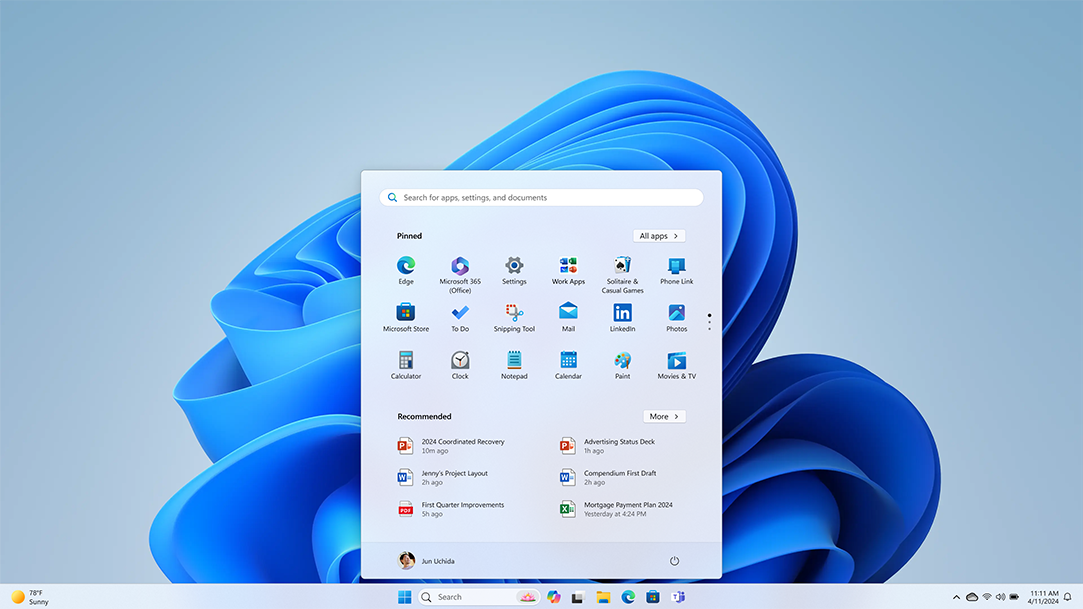
While it isn't a really big thing (thus the half), the Start menu behavior in Windows Vista is a lot cleaner. In Windows XP, to get to a program under All Programs, you'd have to click your way through a series of submenus that flew out from the Start menu. Overshooting cascading menus was a way of life, especially with my laptop's touchpad. In Windows Vista, your options appear in the left pane of the Start menu, rather than exploding across the screen. Neat and clean.
6. Control Panel Search: Even a caveman can do it
Are you your family's favorite support technician? Are you always fielding calls (usually during dinner) that start with "How do I…?" Then you're probably spending a lot of time walking them through Control Panel, the center of the universe for adjusting settings in Windows. In Windows Vista, the Control Panel search box makes finding tasks a whole lot easier, especially when Aunt Abby calls and wants you to help her install fonts. Just have her type a keyword or task, such as "install font" in the Control Panel search box, and the view narrows quickly to show the task–"Install or remove a font"–so you can get right to the job at hand.
 |
| Use the Control Panel search box to find tasks quickly |
7. Windows Photo Gallery: What you see is what you've got
Being basically lazy when it comes to organizing my digital pictures, I've found Windows Photo Gallery helps me get my act together quite painlessly. Unlike the Pictures folder, Photo Gallery lets you see all the pictures on your computer, no matter which folder they're in. You can also import pictures and perform minor editing, such as cropping, adjusting color and contrast, or even fixing that dreaded red-eye.
Where I find Photo Gallery really useful is in adding tags and ratings to categorize my pictures. When you have a zillion images that start with "DSCN" right out of your camera, tags can really help. For example, when I imported pictures of my motorcycle, I selected all of them and added the tag "motorcycle" to them. Now when I want to show off my bike to friends, I just click the tag in the Navigation pane and Photo Gallery displays only those pictures. Because not all images are worth showing to everyone, I also rate mine (from 0 to 5 stars) so I can filter on only the best. To learn more, see Windows Photo Gallery: frequently asked questions.
 |
| By using tags, I can easily find all of my motorcycle pictures in Windows Photo Gallery |
The little things count
While these are my current hot-button items, there are lots of features in Windows Vista that I haven't tried yet. But already, the learning curve has flattened out and most of my frustrations have disappeared. As I use Windows Vista, I keep finding little things that make life easier. So, Windows XP, it's been a good five years but, goodbye—it's been nice knowing you.
About the author

Jay Munro is a writer on the Windows team at Microsoft, specializing in Internet Explorer. Previously, he was a project leader with PC Magazine labs and a freelance writer for PC Magazine, Extreme Tech, PC Today, C-Net, Computer Shopper, and other magazines.
Have a comment for this columnist? Enter your feedback using the tool below. (You'll see the comment box after you click one of the buttons.) Note that although the columnist will read your feedback, personal replies are not possible due to the volume of feedback received.