Almost everything you do on your computer requires using a program. For example, if you want to draw a picture, you need to use a drawing or painting program. To write a letter, you use a word processing program. To explore the Internet, you use a program called a web browser. Thousands of programs are available for Windows.
Starting a program
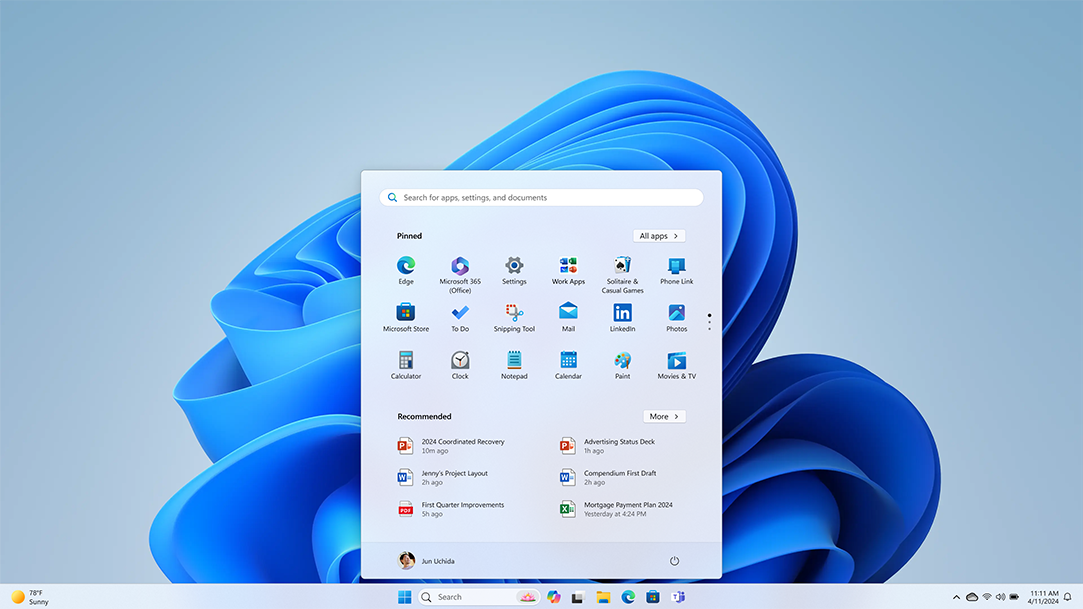
The Start menu is the gateway to all of the programs on your computer. To open the Start menu, click the Start button
. The left pane of the Start menu contains a small list of programs, including your Internet browser, e‑mail program, and recently used programs. To start a program, click it.
Click a program in the left pane to start it
If you don't see the program you want to open but know its name, type all or part of the name into the Search box at the bottom of the left pane. For example, to find Windows Photo Gallery, type photo or gallery in the Search box. The left pane instantly displays search results. Under Programs, click a program to open it.
The left pane displays programs that contain the search term
To browse a complete list of your programs, click the Start button, and then click All Programs. For more information, see The Start menu (overview).
You can also start a program by opening a file. Opening the file automatically opens the program associated with the file. See Open a file or folder.
Most programs contain dozens or even hundreds of commands (actions) that you use to work the program. Many of these commands are organized under menus. Like a restaurant menu, a program menu shows you a list of choices. To keep the screen uncluttered, menus are hidden until you click their titles in the menu bar, located just underneath the title bar. For example, clicking "Image" in the Paint menu bar displays the Image menu:
The Image menu in Paint
To choose one of the commands listed in a menu, click it. Sometimes a dialog box will appear, in which you can select further options. If a command is unavailable and cannot be clicked, it is shown in gray, like the Crop command in the picture.
Toolbars provide access to frequently used commands in the form of buttons or icons. These commands usually appear in the program's menus, too, but toolbars let you choose a command with just one click. Toolbars typically appear just below the menu bar:
Toolbars in WordPad
Clicking a toolbar button performs a command. In WordPad, for example, clicking the Save button
saves the document. To find out what a particular toolbar button does, point to it. The button's name or function appears:
Many programs allow you to create, edit, save, and print documents. In general, a document is any type of file that you can edit. For example, a word processing file is a type of document, as is a spreadsheet, an e‑mail message, and a presentation. However, the terms document and file are often used interchangeably; pictures, music clips, and videos that you can edit are usually called files, even though they are technically documents.
Some programs, including WordPad, NotePad, and Paint, open a blank, untitled document automatically when you start the program, so that you can start working right away. You'll see a large white area and a generic word like "Untitled" or "Document" in the program's title bar.
The title bar in WordPad
If your program doesn't open a new document automatically when it starts, you can do it yourself:
•
Click the File menu in the program you are using, and then click New. If you can open more than one type of document in the program, you might also need to select the type from a list.
As you work on a document, your additions and changes are stored in your computer's random access memory (RAM). Storage of information in RAM is temporary; if your computer is turned off or loses power, any information in RAM is erased.
Saving a document allows you to name it and to store it permanently on your computer's hard disk. That way, the document is preserved even when your computer is turned off, and you can open it again later.
To save a document
•
On the File menu, click Save. If this is the first time you are saving the document, you’ll be asked to provide a name for it and a location on your computer to save it to.
Even if you've saved a document once, you need to keep saving it as you work. That's because any changes you've made since you last saved the document are stored in RAM, not on the hard disk. To avoid losing work unexpectedly due to a power failure or other problem, save your document every few minutes.
Most programs allow you to share text and images between them. For example, you can copy text or a picture from a webpage in Internet Explorer to a document in WordPad. When you copy information, it goes into a temporary storage area called the Clipboard. From there, you can paste it into a document.
Before you start moving information around, you should understand how to switch between the open windows on your desktop. See Working with windows.
Most programs allow you to undo (reverse) actions you take or mistakes you make. For example, if you delete a paragraph in a WordPad document accidentally, you can get it back by using the Undo command. If you draw a line in Paint that you don't want, undo your line right away and it vanishes.
Almost every program comes with its own built-in Help system for those times when you're confused about how the program works.
To access a program's Help system:
•
On the Help menu of the program, click the first item in the list, such as "View Help," "Help Topics," or similar text. (The name of this item will vary.) – or – Press F1. This function key opens Help in almost any program.
In addition to program-specific help, some dialog boxes contain links to Help about their specific functions. If you see a question mark inside a circle or square, or a colored and underlined text link, click it to open the Help topic.
To exit a program, click the Close button
in the top right corner. Or, on the File menu, click Exit.
Remember to save your document before exiting a program. If you have unsaved work and try to exit the program, the program will ask you whether you want to save the document:
A dialog box appears if you exit a program without saving your work
•
To save the document and then exit the program, click Yes.
•
To exit the program without saving the document, click No.
•
To return to the program without exiting, click Cancel.
You're not limited to using the programs that came with your computer—you can buy new programs on CD or DVD or download programs (either free or for a fee) from the Internet.
Installing a program means adding it to your computer. After a program is installed, it appears in your Start menu in the All Programs list. Some programs might also add a shortcut to your desktop. See Install a program.
To move an item on the screen by selecting the item and then pressing and holding down the mouse button while moving the mouse. For example, you can move a window to another location on the screen by dragging its title bar.
Icon
__elbasuer__
Icon
A small picture that represents a file, folder, program, or other object or function.
Download
__elbasuer__
Download
To copy a file from one computer to another using a modem or network.
Random access memory (RAM)
__elbasuer__
Random access memory (RAM)
The main internal storage area the computer uses to run programs and store data. Information stored in RAM is temporary and is designed to clear when the computer is turned off.
Title bar
__elbasuer__
Title bar
The horizontal bar at the top of a window that contains the name of the window. Most title bars also contain boxes or buttons for closing and resizing the window.
Point
__elbasuer__
Point
To move a pointer (for example, an arrow) to a particular position on the screen, by using a pointing device such as a mouse or pen.
File
__elbasuer__
File
A collection of information that is stored on a computer under a single name. A file can be a text document, a picture, a program, and so on. Files typically have a three-letter file name extension that helps to indicate the type (for example, picture files are often saved in JPEG format and have the file name extension .jpg).
Dialog box
__elbasuer__
Dialog box
A small window that contains options for completing a task. For example, the first time you save a file, a dialog box appears with options for naming the file and choosing which folder to save it in.
Program
__elbasuer__
Program
A set of instructions that a computer uses to perform a specific task, such as word processing, accounting, or data management. Also called an application.
Hard disk
__elbasuer__
Hard disk
The primary storage device located inside a computer. Also called a hard drive or hard disk drive, it is where your files and programs are typically stored.
Web browser
__elbasuer__
Web browser
A software program used to display webpages and to navigate the Internet. Internet Explorer is a web browser.
Shortcut
__elbasuer__
Shortcut
A link to any item accessible on your computer or on a network, such as a program, file, folder, disk drive, printer, or another computer. You can put shortcuts in various areas, such as on the desktop, on the Start menu, or in specific folders.