

Choose a Windows PC

Find the Windows PC that’s right for you

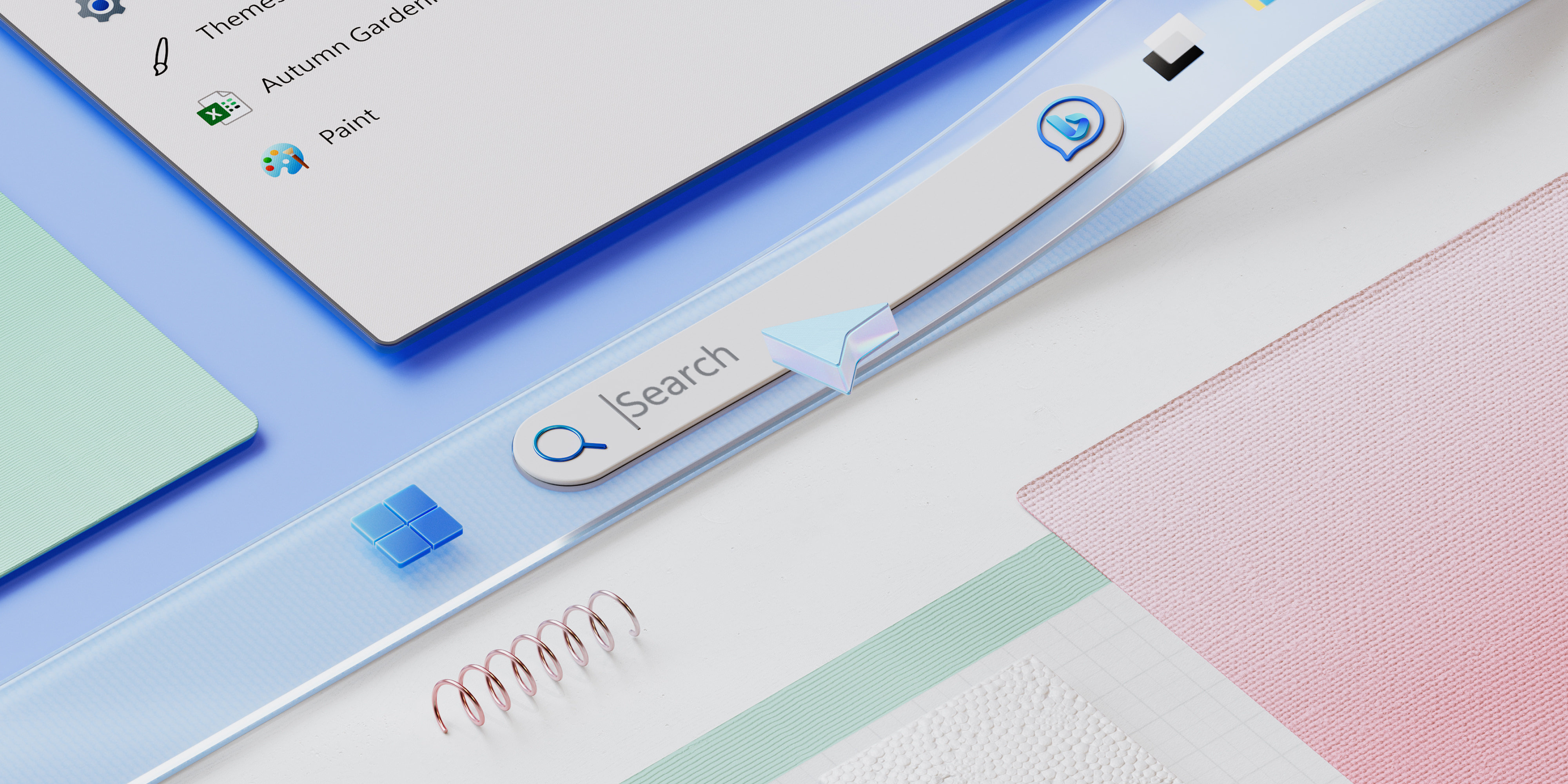
Explore Windows 11’s new features
Do it more intuitively. Get it done quickly. And still have time for fun. Learn why Windows 11 is the best Windows yet.
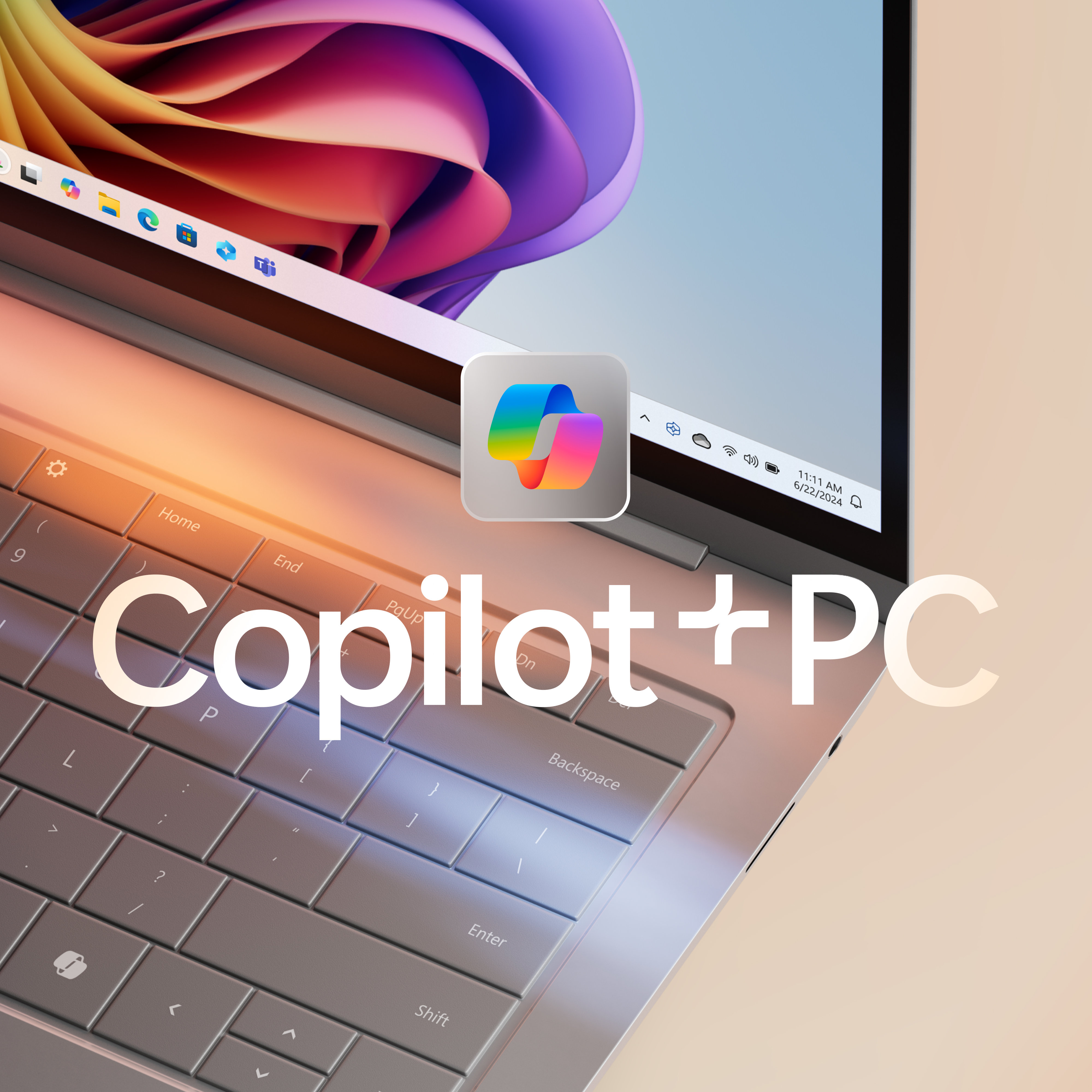
A new AI era begins
Step into a new era of AI-powered Windows computers with your very own Copilot+ PC. The fastest, most intelligent Windows PCs ever.
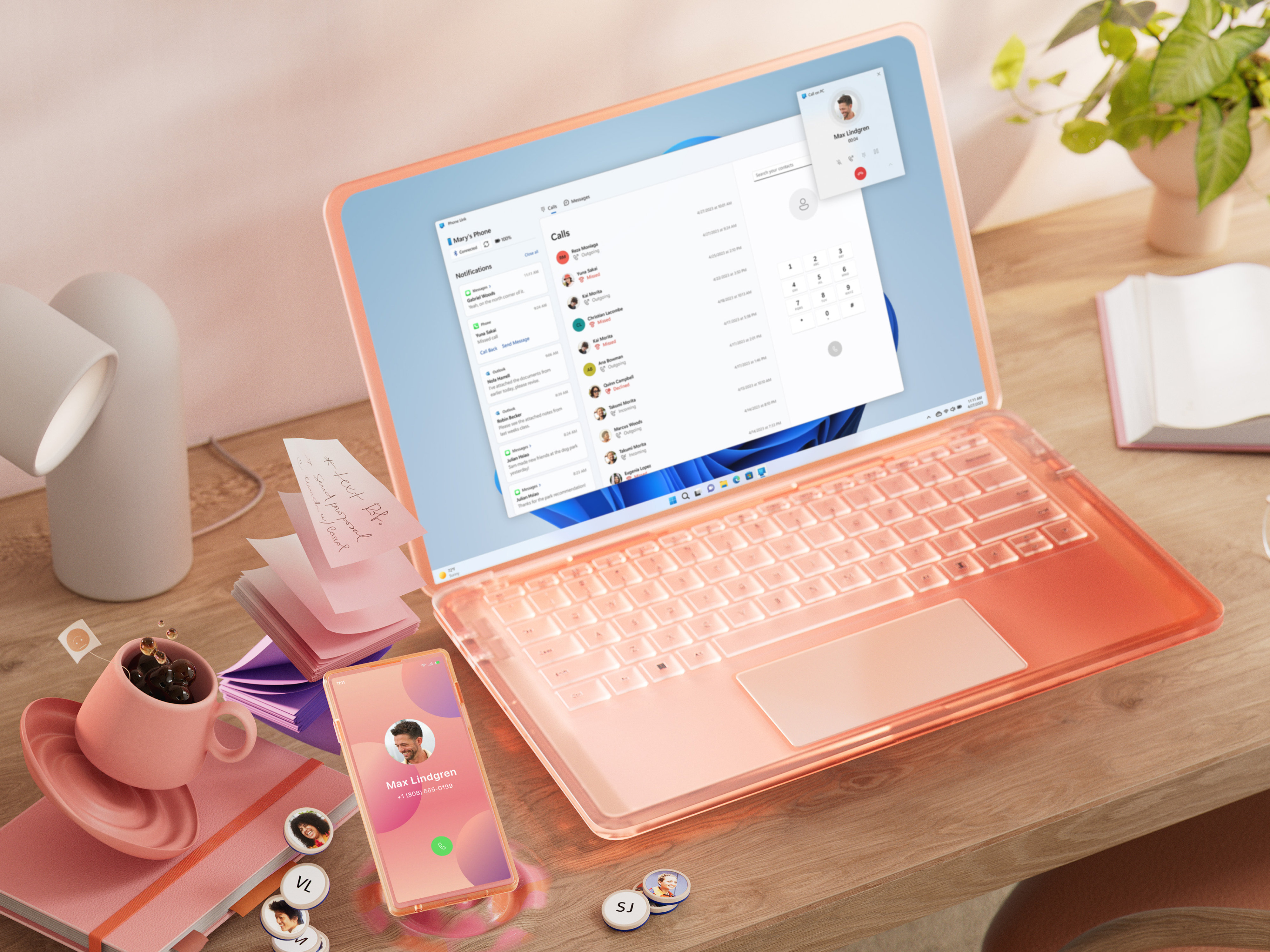
Sync your phone and PC
With Microsoft Phone Link, you can make calls, reply to texts, and check your phone’s notifications—all from your PC.

Smart security
Before you even start your PC, Windows 11 is at work. Safeguard your device from phishing, network, and cyber-attacks.

Windows 11 works how you work
Write with your own voice and adapt your digital experience to your unique audio and visual needs. Windows 11 OS is made for you, and for the things you love.

Gaming never looked so good
Immerse yourself in a cinematic gaming experience with next-level performance, smoother graphics, and natural lighting. Play next-gen and classic games online with Windows 11.

Creativity meets intelligence
Use AI to focus on the moments that matter most. Edit your photos and videos with Windows 11.

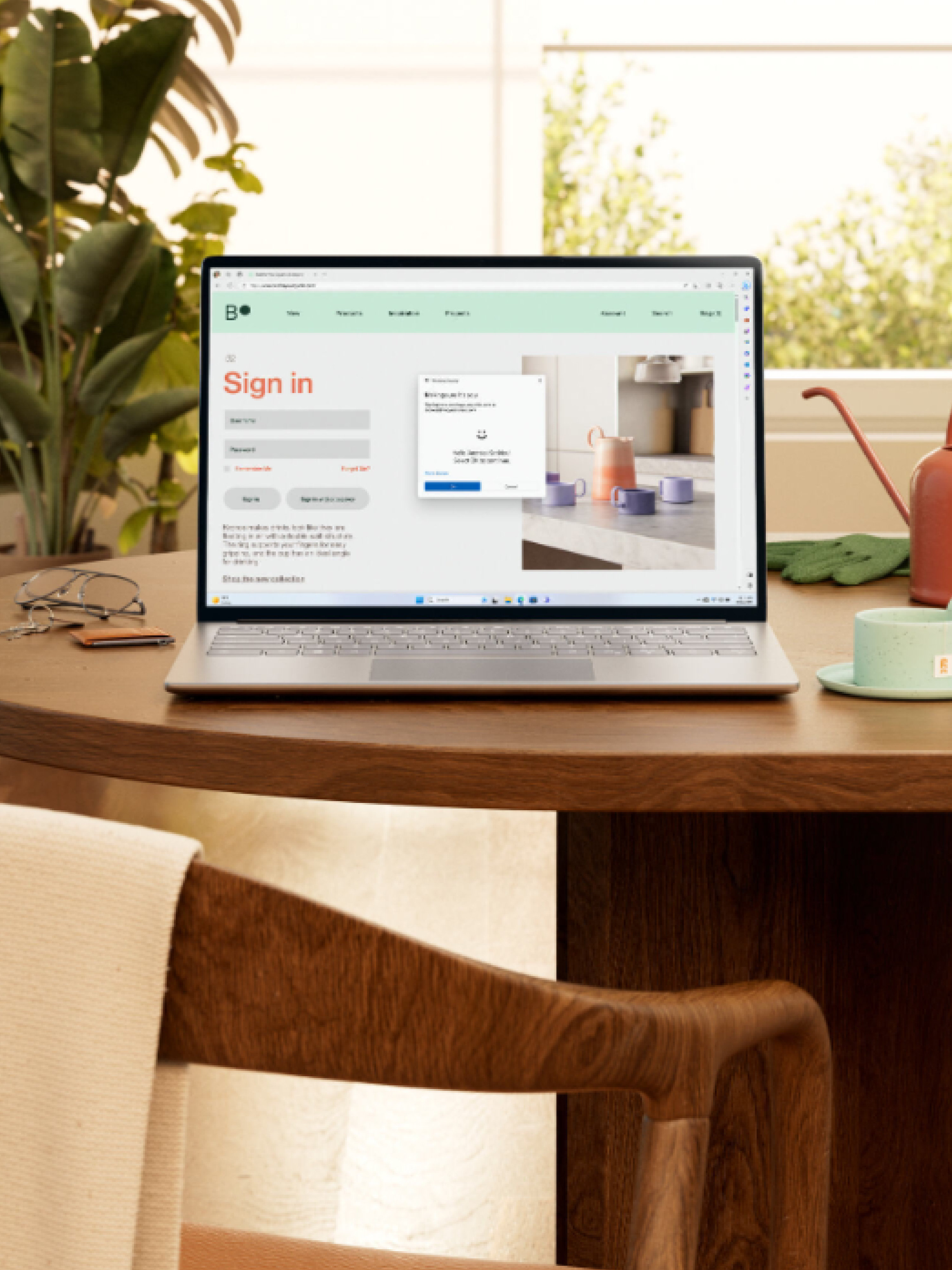
- Screens simulated, subject to change. Features and app availability may vary by region.
- 1 Windows can back up files, settings, and apps from PCs running Windows 10 and higher. Restore is available on Windows 11, version 22H2 and higher. Geographic restrictions may apply.
- 2 Requires Microsoft account. Up to 5 GB of Microsoft Storage is included. Data transfers exceeding 5 GB require an active Microsoft subscription or trial.
- 3 When you open apps for the first time on your new Windows 11 PC, some will reinstall when you first open them. Other apps may require you to reinstall them manually from the original app provider.
- 4 Using Windows Backup to restore to a Windows 11 PC requires you to sign in during initial computer setup with the same Microsoft account you used for Windows 10 PC backup.
Follow Microsoft Windows
Share this page