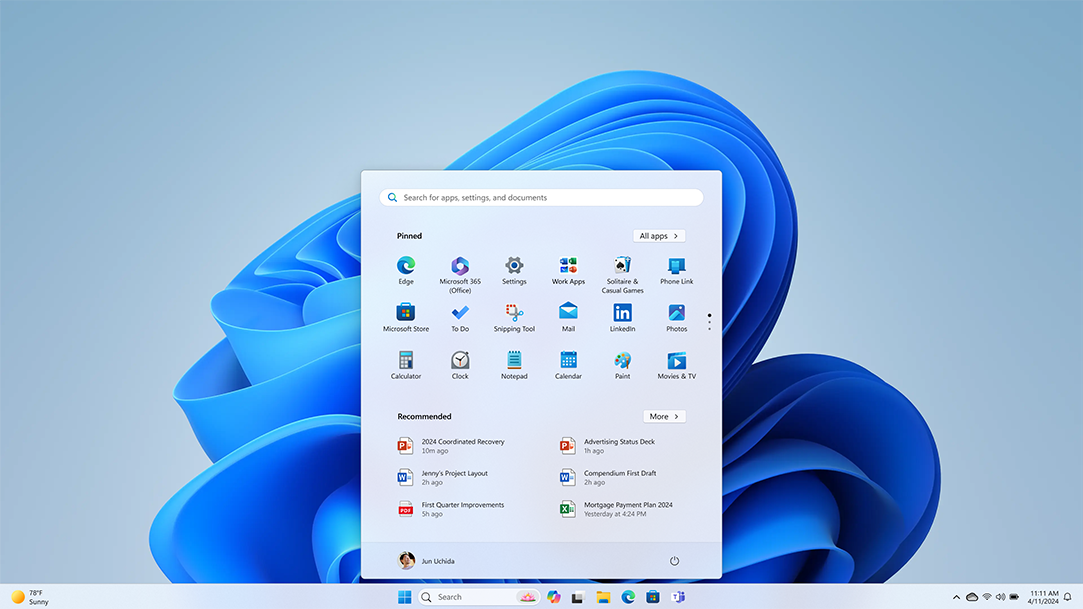
After you upgrade to Windows Vista and begin to explore, you might wonder where some of your old favorite features are, and how to perform the tasks you used to do in Windows XP. We've improved many features in Windows Vista and renamed a few programs to better reflect what they do. We’ve also moved some things around so they’ll be easier for you to use and find.
If you’re accustomed to Windows XP, this article will help make the transition to Windows Vista even easier for you.
What's new on the Start menu?
The information on the Start menu is organized more efficiently than in Windows XP, with an improved programs list and a new search feature to make it easier to find any program, folder, or file you're looking for, just by typing its first few letters. The Start menu is still the place to turn your computer off or log off, but there are also new buttons for locking your computer or putting it into a low-power state called sleep mode.
When you click the new Power button on the Start menu, Windows saves your work and programs in their current state, and then puts the computer into sleep mode.
The Start menu also has a new Lock button. Locking your computer is a quick way to prevent anyone else from using your files and programs while you are away from your computer, such as when you take a break. (Anyone with their own user account on that computer can still log on to their own account.)
The arrow next to the Lock button opens a menu that displays the Log Off and Shut Down options that are on the Start menu in Windows XP, plus five other commands previously not on the Start menu.
The Power and Lock buttons are on the Start menu. Clicking the arrow next to the Lock button displays the Lock button menu, which includes up to seven different options, including Lock
The following table describes the options on the Lock button menu:
Menu option
What it does
Switch User
Enables Fast User Switching, which is a way to switch between users on a computer without closing programs and files first. This makes it easier to share a computer with others.
Log Off
Closes all your files and programs and logs you off from Windows without turning off the computer.
Lock
Locks your computer, which prevents anyone from using your files and programs when you are away from your computer without requiring you to log off.
Restart
Closes all your files and programs, turns off your computer, and then restarts it.
Sleep
Saves all open documents and programs, and puts your computer to sleep while still allowing the computer to quickly resume full-power operation (typically within several seconds) when you want to start working again. Sleep replaces the Standby option in Windows XP.
Hibernate
Puts your computer into a power-saving state, but saves your work to your hard disk so that you can safely turn off your computer. Hibernate is a new option in Windows Vista.
Shut Down
Turns off the power to your computer. Use this option only when you must turn off the power to your computer, for example, when you want to add memory or you don’t plan to use the computer for several days.
NoteDepending on which kind of computer you're using and what power-saving states it supports, hibernate and sleep may not be available. For more information, see Why isn't Sleep available?
There is no longer a Printers and Faxes option on the Start menu as there is in Windows XP. To set up a printer, you need to open Printers in Control Panel.
Open Printers by clicking the Start button , clicking Control Panel, clicking Hardware and Sound, and then clicking Printers.
What happened to the Run command?
The Run command is still available if you prefer to use it instead of the Search box. You can open programs, files, and folders by typing their names or locations in either the Search box or the Run dialog box.
To open the Run dialog box, click the Start button , click All Programs, click Accessories, and then click Run.
Using the improved search features in Windows Vista, you can search from many places, including the Start menu, Control Panel, and any folder. No matter where you are, you can usually find what you want, even if the item you're searching for is in a different location.
The Search box on the Start menu is one of the most convenient ways to find things on your computer. Just open the Start menu and start typing. You don't even need to click inside the box first. As you type, the search results appear above the Search box in the left pane of the Start menu.
The Search box on the Start menu will search your programs and all of the folders in your personal folder (which includes Documents, Pictures, Music, Desktop, and other common locations). It will also search your e mail messages, saved instant messages, appointments, and contacts. It performs the same tasks as the Run command, giving you a quick way to open programs, files, folders, and—when you're connected to the Internet—websites.
The Search box in a folder will search within the current location by default, though you can expand the search to include additional locations as well.
Control Panel has undergone many changes, but you can still use it to make the same changes you did in Windows XP and more. When you open Control Panel, you will see ten categories. The most common tasks—such as uninstalling a program or changing your desktop background—are listed below each Control Panel category for quick access. Click any category to see other, less common tasks you can perform in Control Panel. The number of items in the Windows Vista Control Panel is more than double that of the Windows XP Control Panel, giving you more control over your computer and settings.
To make all those settings easier to find, Control Panel is now searchable. Even if you don’t know the name of the Control Panel item you want or what category to look in, try searching for it by typing the best term you can think of in the Search box. For example, if you want to change something about your monitor, type monitor into the Control Panel Search box. If you want to change a sound on your computer, type sounds. The search results will show you the correct place to adjust these settings.
Just start typing in the Search box to narrow down the categories in Control Panel and find what you're looking for
Windows Vista drops the “My” that used to be part of many folder names. For example, the My Documents folder in Windows XP is now named simply Documents in Windows Vista. Similarly, My Pictures and My Music are now named Pictures and Music.
You can find all of these folders and more in your personal folder. Instead of hunting for Pictures, Music, Documents, Videos, and other key folders, just open your personal folder and you'll see them all. The personal folder appears on the Start menu and displays the name that you use to log on to the computer. To open your personal folder, click the Start button , and then click your user account name at the top of the Start menu. This is a convenient way to access the most frequently used locations on your computer.
The menu bars that appear throughout Windows XP are usually hidden by default in Windows Vista. You might not need Windows XP–style menus, however, since nearly every menu command is available in Windows Vista as either a toolbar button or right-click option. If you don’t see the option you want on the toolbar, try right-clicking to see additional options.
To turn the menu bar on or off in any program or window, press the ALT key.
You can still do all the things you used to in Windows XP, but now you can do even more. We renamed and improved some of the most common Windows programs. The following table shows the new program names alongside the familiar Windows XP names.
Windows XP program
Windows Vista program
Windows Picture and Fax Viewer
Windows Photo Gallery
The new Windows Photo Gallery makes it easy to organize large collections of digital photos, search those collections, and tag photos for easy retrieval. For more information, see Working with digital pictures.
Windows Address Book
Windows Contacts
Windows Contacts has all the features of the old Windows Address Book, as well as new features such as the ability to add pictures to your contacts. For more information, see Managing your contacts.
Outlook Express
Windows Mail
Windows Mail has the tools you need to exchange e‑mail with colleagues and friends, while replacing Outlook Express with a host of improvements, including better junk e‑mail filtering and easier setup. For more information, see Working with Windows Mail.
Fax Console
Windows Fax and Scan
With Windows Fax and Scan, you can use your computer to fax and scan documents and pictures, create fax cover pages, and send scanned documents and pictures as fax or e‑mail attachments, all from within a single, easy-to-use interface.
Windows Fax and Scan is included only in Windows Vista Business, Windows Vista Enterprise, and Windows Vista Ultimate.
NetMeeting
Windows Meeting Space
With the new Windows Meeting Space feature in Windows Vista, you can collaborate online with other people, sharing documents, programs, and even your Windows desktop.
The primary storage device located inside a computer. Also called a hard drive or hard disk drive, it is where your files and programs are typically stored.
User account
__elbasuer__
User account
A collection of information that tells Windows which user rights and access permissions a person has on a computer. The user account records the user name, password, and a unique number that identifies that account.
Desktop
__elbasuer__
Desktop
The work area on a computer screen that simulates the top of an actual desk. You can arrange icons on the desktop, such as the Recycle Bin and shortcuts to programs, files, folders, and various types of documents, just as you would arrange real objects on top of a desk.
Tag
__elbasuer__
Tag
A custom file property that you create to help find and organize your files.
Location
__elbasuer__
Location
Any disk drive, folder, or other place in which you can store files and folders. Programs will commonly ask you to choose a location to save a file.
Personal folder
__elbasuer__
Personal folder
A folder containing your most frequently used folders (such as Documents, Pictures, Music, Favorites, Contacts, and other folders that are specific to your user account). The personal folder is labeled with the name you use to log on to your computer and is located at the top of the Start menu.